
What Is a GPU and Why Does It Run AI?
Graphics Processing Units (GPUs) were not designed for machine learning. In the late 1990s, Nvidia built them to handle 3D gaming graphics – calculating the colors, lighting, and vectors for millions of pixels across a screen simultaneously. This task required executing simple mathematical operations (like matrix multiplication) over and over again, in parallel, at lightning speed.
By pure mathematical coincidence, the exact same operations required to draw a 3D monster on a screen are what power modern artificial intelligence. Neural networks, at their core, are massive layers of numbers (weights) that multiply and add together when data passes through them. A GPU excels at this because of its architecture: it contains thousands of small, specialized calculation cores instead of the few, general-purpose cores found in a standard CPU.
Today, the GPU is the default engine for deep learning. Without it, training modern models like Llama 3 or GPT-4 would take decades rather than weeks. If you are planning an AI deployment, sizing and sourcing your GPU resources is the most critical infrastructure decision you will make.
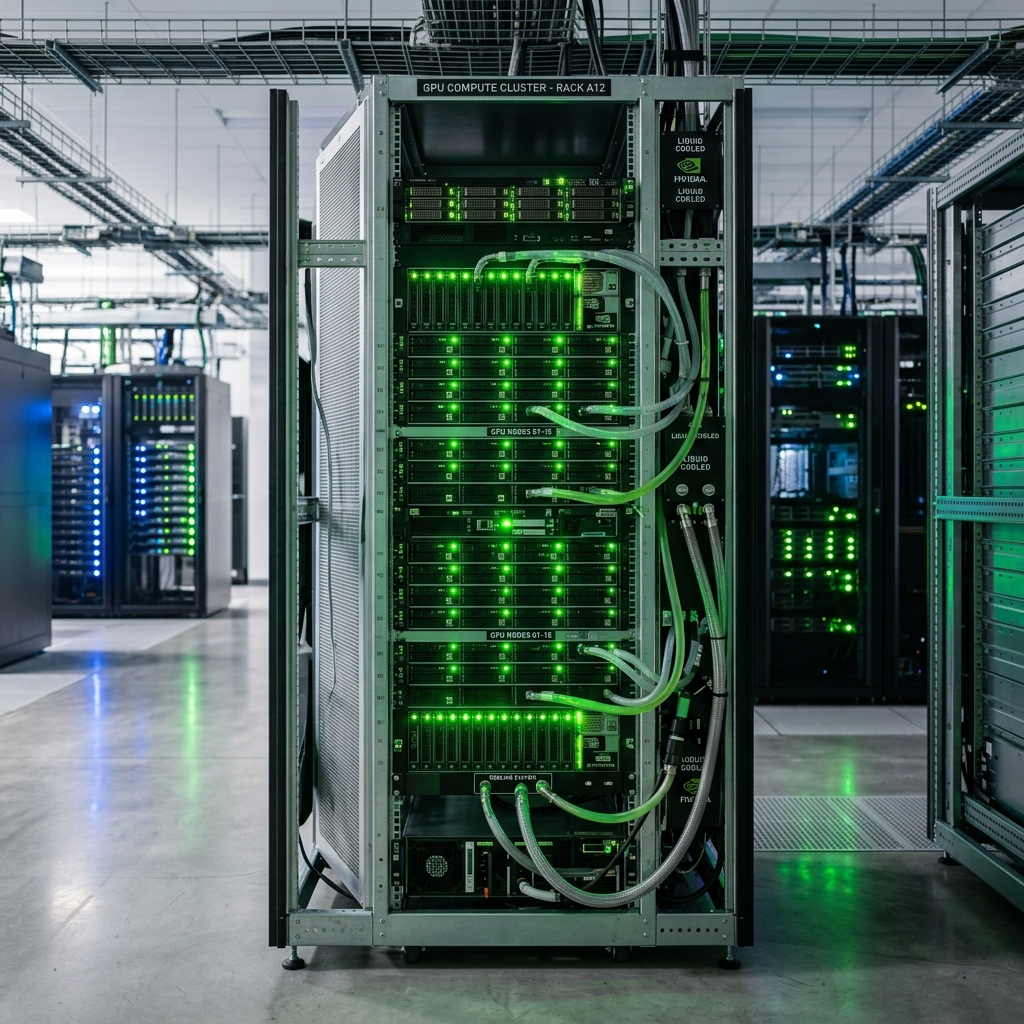
Enterprise-grade GPU servers stack high-density computing clusters to process massive training datasets.
Why Parallel Compute Wins
A standard computer processor (CPU) acts like a highly trained mathematician driving a single sports car. It can solve incredibly complex algebraic formulas one after another, switching tasks instantly. A GPU, by contrast, is like a fleet of five thousand basic trucks moving dirt. None of the trucks can drive fast or solve calculus, but they can move millions of tiny loads at the same time.
In AI inference and training, we do not need the sports car. We need the fleet. When an LLM generates a single word, it performs billions of floating-point operations (FLOPs). Because these calculations do not depend on each other, they can be split across the GPU’s thousands of CUDA cores and solved in parallel.
If you run an LLM on a CPU, the processor must queue the calculations. Even a 96-core server CPU will bottleneck, resulting in a generation speed of 1 to 2 tokens per second – far too slow for interactive software. On a GPU with 5,000 cores, those same calculations resolve instantly, outputting 50 to 100 tokens per second.
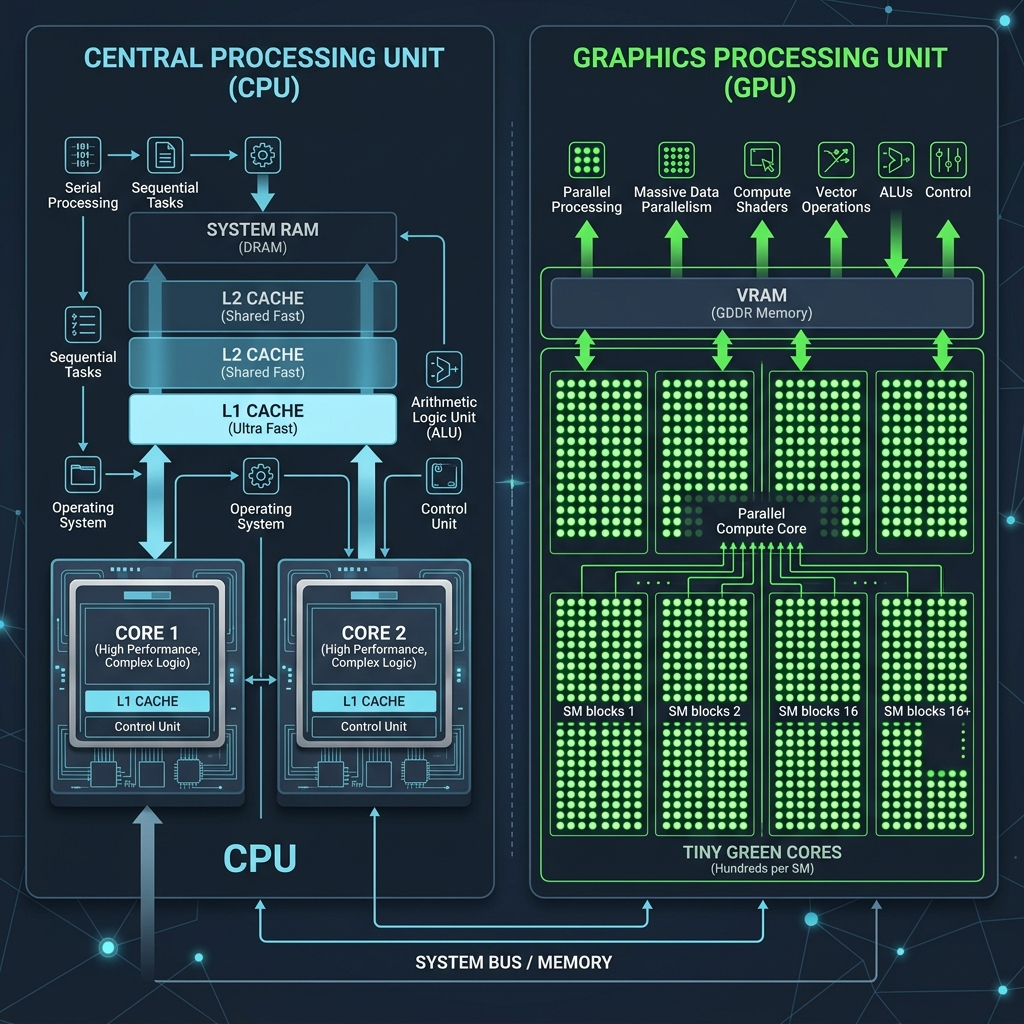
CPUs use large caches and powerful single cores for sequential tasks, while GPUs leverage thousands of small ALUs for parallel throughput.
GPU vs CPU: Side-by-Side Architecture Comparison
To understand why we size systems the way we do, it is helpful to contrast the architectural tradeoffs between these two processor types. A CPU dedicates the majority of its physical silicon to instruction flow control, branch prediction, and massive memory caches. A GPU dedicates its silicon almost entirely to raw calculation engines (Arithmetic Logic Units, or ALUs).
| Feature | Central Processing Unit (CPU) | Graphics Processing Unit (GPU) |
|---|---|---|
| Core Count | 4 to 96 large, complex cores | 3,000 to 20,000 small, parallel cores |
| Instruction Latency | Extremely low (optimized for quick single tasks) | High latency (optimized for mass throughput) |
| Memory Bandwidth | 60 to 100 GB/s (DDR5 RAM) | 1,000 to 4,800 GB/s (GDDR6 or HBM3e) |
| Floating Point Operations | Excellent at complex, sequential logic | Specialized for mass vector/matrix arithmetic |
| Power Consumption | 65W to 350W | 250W to 700W per card |
Training vs Inference: Sizing for the Workload
AI workloads divide into two distinct phases: training and inference. Understanding which one you are running determines how much GPU power – and capital – you need to allocate.
Model training is the process of building a neural network from scratch or fine-tuning an existing model on a massive custom dataset. This requires backpropagation, where the GPU must calculate, adjust, and store optimizer states and gradients for every single parameter. Training is incredibly write-heavy and compute-bound, demanding massive clusters of interconnected enterprise GPUs (like Nvidia H100s or A100s) linked by ultra-fast interconnects like NVLink.
Inference is the process of running a pre-trained model to answer queries (e.g., asking Llama 3 to summarize a document). During inference, the weights are locked; the GPU only needs to read the data, run it forward through the network, and output the tokens. Inference is read-heavy and memory-bandwidth bound. It requires far less compute than training, meaning you can often run it on consumer GPUs, workstations, or dedicated local edge chips.
VRAM and Memory Bandwidth: The Real AI Bottleneck
When developers experience slow AI generation or out-of-memory errors, they often blame the GPU’s processor speed. In reality, the bottleneck is almost always memory capacity (VRAM) or memory bandwidth.
Video RAM (VRAM) is the fast storage on the GPU board itself. Before a model can execute, its entire weight matrix must fit inside this VRAM. If your model requires 18 GB of space to load and your GPU only has 16 GB, the model will fail to run. Offloading layers back to system RAM is possible, but it destroys performance, dropping token rates by 90% or more.
Memory bandwidth determines how fast the GPU can pull those weights out of memory and into the calculation cores. Because LLMs must read the entire model weight matrix from VRAM for every single token they generate, your generation speed is directly capped by your VRAM bandwidth. Consumer cards like the RTX 4090 use GDDR6 memory with around 1,000 GB/s bandwidth. Enterprise cards like the H100 use High Bandwidth Memory (HBM3) stacked directly on the chip, achieving over 3,000 GB/s to unlock maximum speeds.
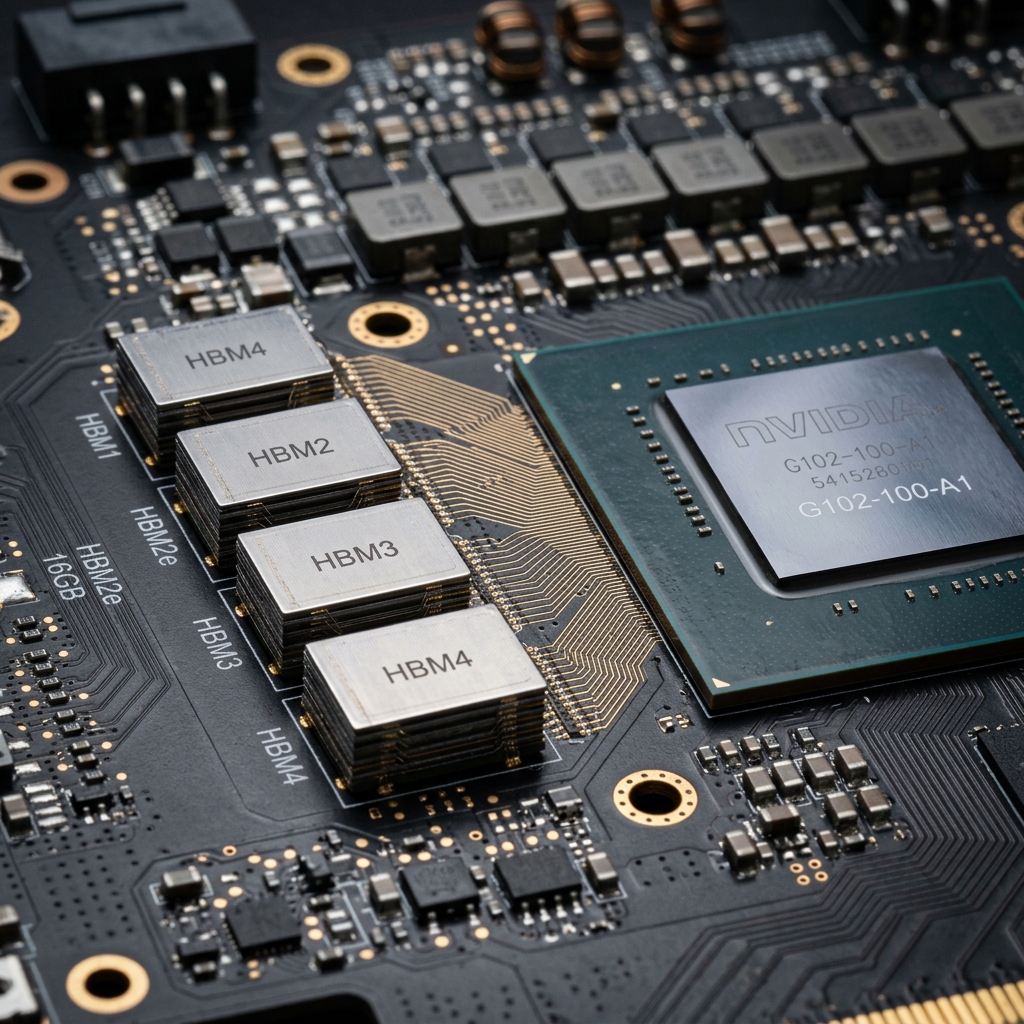
High-Bandwidth Memory (HBM) stacks memory dies vertically on the silicon interposer, shortening physical distance to maximize data throughput.
Tensor Cores and Precision
In older GPU generations, calculations were performed using standard FP32 (32-bit floating point) precision. While highly accurate, storing every number in 32 bits takes up massive memory space and compute energy. Modern AI models are trained and run using lower precision formats like FP16 (16-bit) or BF16, and quantized down to INT8 (8-bit) or INT4 (4-bit) for local deployments.
Nvidia introduced Tensor Cores to exploit this shift. These are specialized calculation blocks within the GPU designed solely for mixed-precision matrix multiplication. Instead of calculating one multiply-accumulate operation per clock cycle, a Tensor Core can calculate entire matrix multiplications in a single step.
When choosing a GPU, check its Tensor Core generation. Nvidia’s Ada Lovelace (RTX 40-series) and Hopper (H100) architectures include fourth-generation Tensor Cores that support FP8, allowing developers to double their throughput and cut memory requirements in half with negligible loss in accuracy.
Local GPU Workstations vs Cloud GPU Services
One of the biggest architectural decisions you must make is where to host your GPU compute. Should you buy physical hardware workstations for your office, build custom GPU servers, or rent instances from cloud providers like AWS, RunPod, or Lambda Labs?
For teams developing software, running local developer workstations equipped with 24GB GPUs (like the RTX 4090) is incredibly cost-effective. A local workstation pays for itself in under three months compared to renting equivalent cloud instances. However, for production scale or massive training runs, the cloud provides the elasticity needed to spin up hundreds of H100s for a weekend without managing power draw, cooling, or hardware failures.
| Feature | Local GPU Workstation / Server | Cloud GPU Instance (AWS / Lambda Labs) |
|---|---|---|
| Cost Structure | High upfront CapEx (£2k – £15k), near-zero OpEx | Zero CapEx, ongoing hourly billing (£0.50 – £4.00/hr) |
| Data Privacy | Absolute. Your data never leaves your local network | Depends on setup. Requires secure VPC configuration |
| Latency | Near-zero. Local network speeds, no web hops | Variable. Depends on regional distance and API gateways |
| Scale Flexibility | Fixed. Adding capacity requires buying more cards | Infinite. Spin up or terminate instances instantly |
| Maintenance | Your responsibility. Sizing cooling, power, driver upgrades | Managed by provider. Clean virtualization layer |
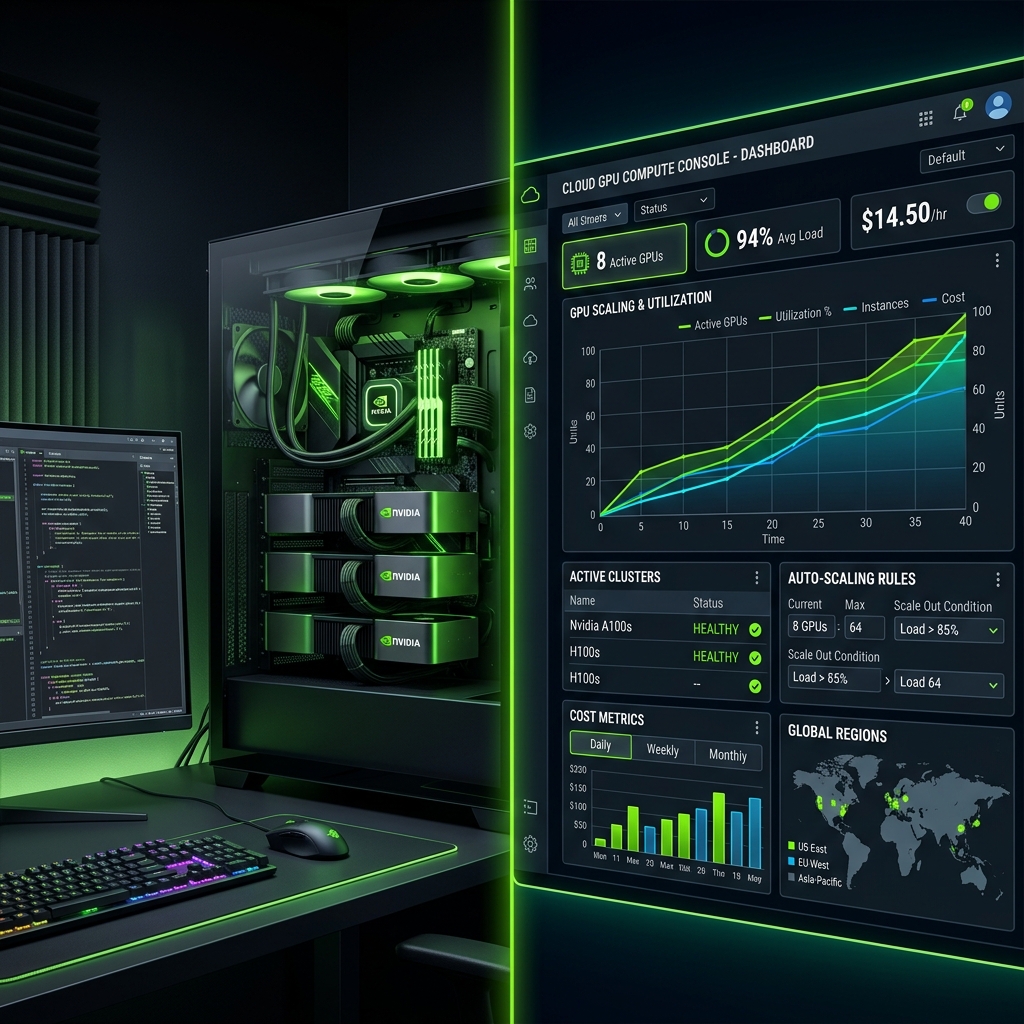
Local GPU workstations secure sensitive data on-site, while cloud clusters scale instantly to meet variable compute demands.
When Is a CPU or NPU Enough?
You do not always need a power-hungry GPU to build AI software. If your workload involves small, highly optimized models, consumer hardware has become surprisingly capable.
Neural Processing Units (NPUs) are now standard in modern laptops (such as Intel Lunar Lake, AMD Ryzen AI, or Apple M-series chips). These chips are highly efficient at running INT4 or INT8 quantized models (like Phi-3 or Llama-3-8B) for on-device tasks like local search indexing, text drafts, or transcription, consuming under 5W of power.
Similarly, if your application calls APIs (like OpenAI’s GPT-4o or Anthropic’s Claude 3.5 Sonnet), your server does not need a GPU at all. A basic CPU-only web server is completely sufficient to handle API requests, manage databases, and serve frontend pages. Save your budget for the API bills rather than buying local graphics cards.
10-Point GPU Sizing and Sourcing Checklist
Before purchasing hardware or signing a cloud contract, run through these ten practical criteria to verify your system scale:
1. Workload target: Are you primarily running inference (read-heavy) or training/fine-tuning (write-heavy)?
2. Base weights memory: Multiply the model parameters by the precision size in bytes (e.g. 70B parameters × 0.5 bytes for 4-bit = 35 GB minimum base VRAM).
3. KV cache buffer: Add a 20-30% buffer to the base weight sizing to account for long context windows and batch sizes.
4. Software ecosystem: Do you require Nvidia CUDA compatibility, or can your framework run on AMD ROCm or Apple Unified Memory?
5. Host motherboard bandwidth: Ensure your motherboard supports PCIe Gen4 x16 lanes or PCIe Gen5 to avoid slot bottlenecks.
6. Power supply limits: Verify that your power supply (PSU) can support the GPU load (typically 450W for an RTX 4090 plus 250W system overhead).
7. Cooling architecture: Decide between blower-style blower coolers (ideal for multi-card stacks) or standard fans (ideal for single workstations).
8. Host RAM ratio: Sizing system RAM to be at least double the total VRAM capacity of your installed GPUs.
9. Storage access speeds: Use PCIe NVMe M.2 SSDs (minimum read speeds of 5,000 MB/s) to load massive weights files into VRAM quickly.
10. Cloud instance availability: If renting, verify the availability of spot vs reserved instances in your target regional zones.
Common GPU Sizing Mistakes
We frequently help teams optimize setups after they have already overspent on the wrong infrastructure. Here are the three most common failures we see:
Under-sizing VRAM. Buying an RTX 4080 (16GB) because it has high core speeds, only to realize the 70B model they need to run cannot load. Always prioritize memory capacity over speed. An older RTX 3090 (24GB) is far more useful for AI than a newer RTX 4080 (16GB).
Ignoring the power wall. Installing two RTX 4090 cards in a standard office PC and tripping the breaker. A dual-4090 build pulls over 1,000W under load, requiring dedicated power lines, massive airflow, and high-wattage PSUs.
Over-buying compute. Renting an H100 instance at £3.50/hour to run a simple RAG search script that could run perfectly on a single RTX 3060 workstation. Start small, profile your memory usage, and only scale up when you hit a bottleneck.
JTech Recommendation
If you are a startup or enterprise developing custom LLM software, start with a local developer workstation equipped with a single Nvidia RTX 4090 (24GB VRAM) or double RTX 3090s (48GB total). This setup allows your developers to experiment, iterate, and run models like Llama 3.1 8B or 70B locally for free, without ongoing hourly costs.
Once your software is ready for production, deploy it on secure, autoscaling cloud instances. Sizing the cloud instance to match the exact quantization your application needs avoids wasted overhead while ensuring you can scale to thousands of users instantly.
GPU for AI: Frequently Asked Questions
Build the Right AI Infrastructure with JTech
Avoid overspending on cloud compute or buying the wrong graphics cards. We help startups and enterprises plan, size, and deploy high-performance AI hardware architectures tailored to their custom software workloads.